Google Authenticator
Why enable two-factor authentication?
To guarantee the security of your Instagram account and allow Lezard Agency to manage your automations securely, two-factor authentication via Google Authenticator is essential. This method offers:
- Enhanced protection for your Instagram account
- Optimal security for our automation services
- Secure and permanent access to your account
Step 1 : Open the Instagram Menu
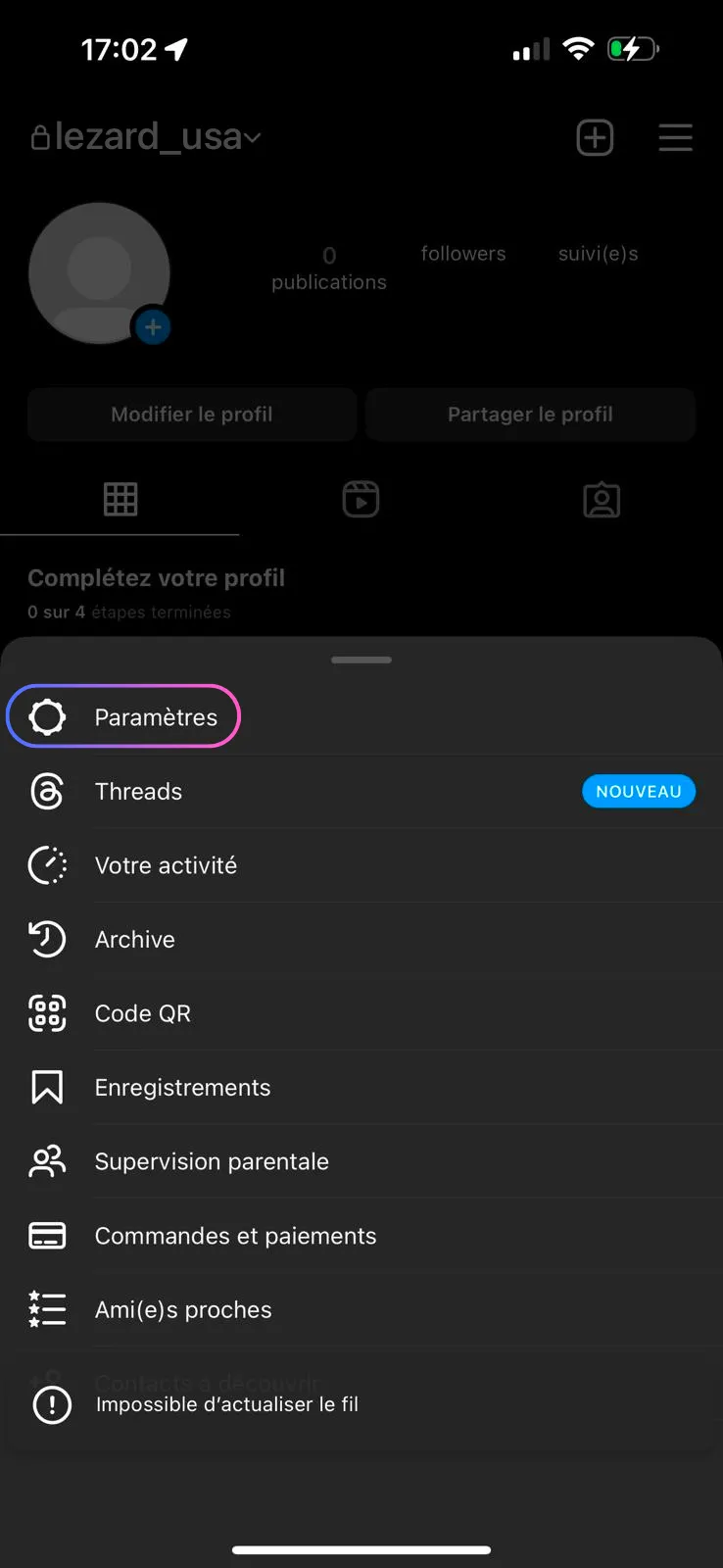
Open the Instagram app and go to your profile. Click the menu icon (☰) in the top right to open the options.
Step 2 : Access the Accounts Center
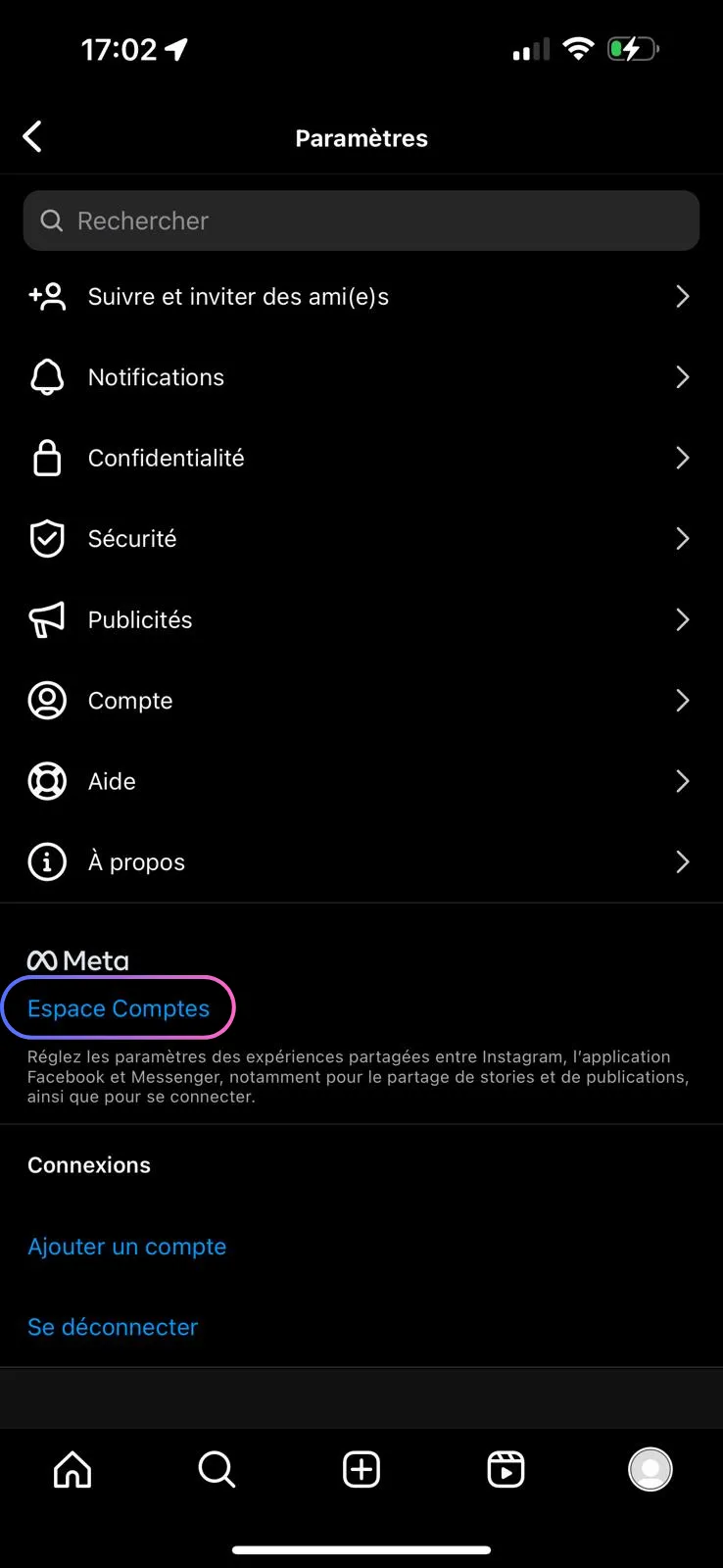
In the "Settings and activity" menu, click on "Accounts Center" (highlighted at the top of the list).
Step 3 : Open Password and Security
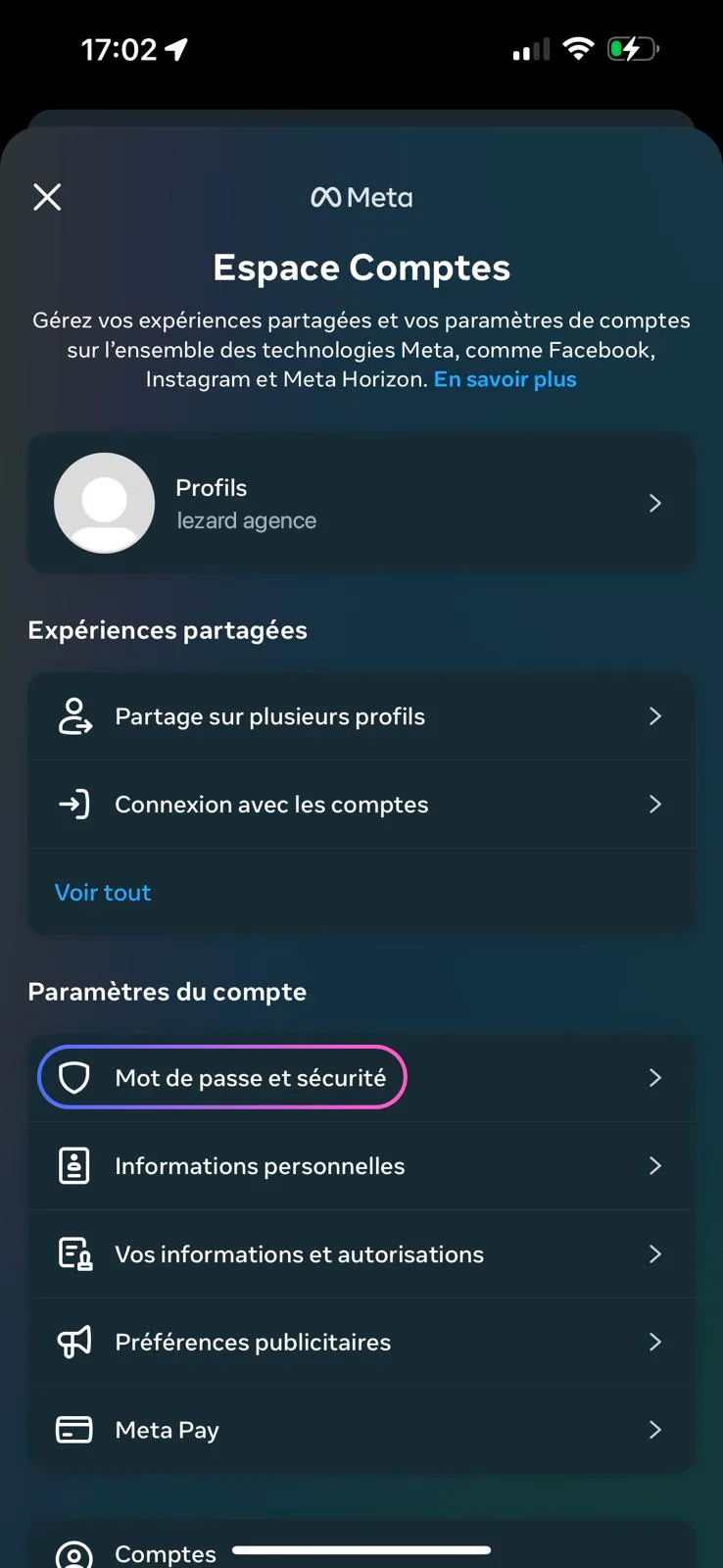
In the Meta Accounts Center, click on "Password and Security" to access security options.
Step 4 : Two-Factor Authentication
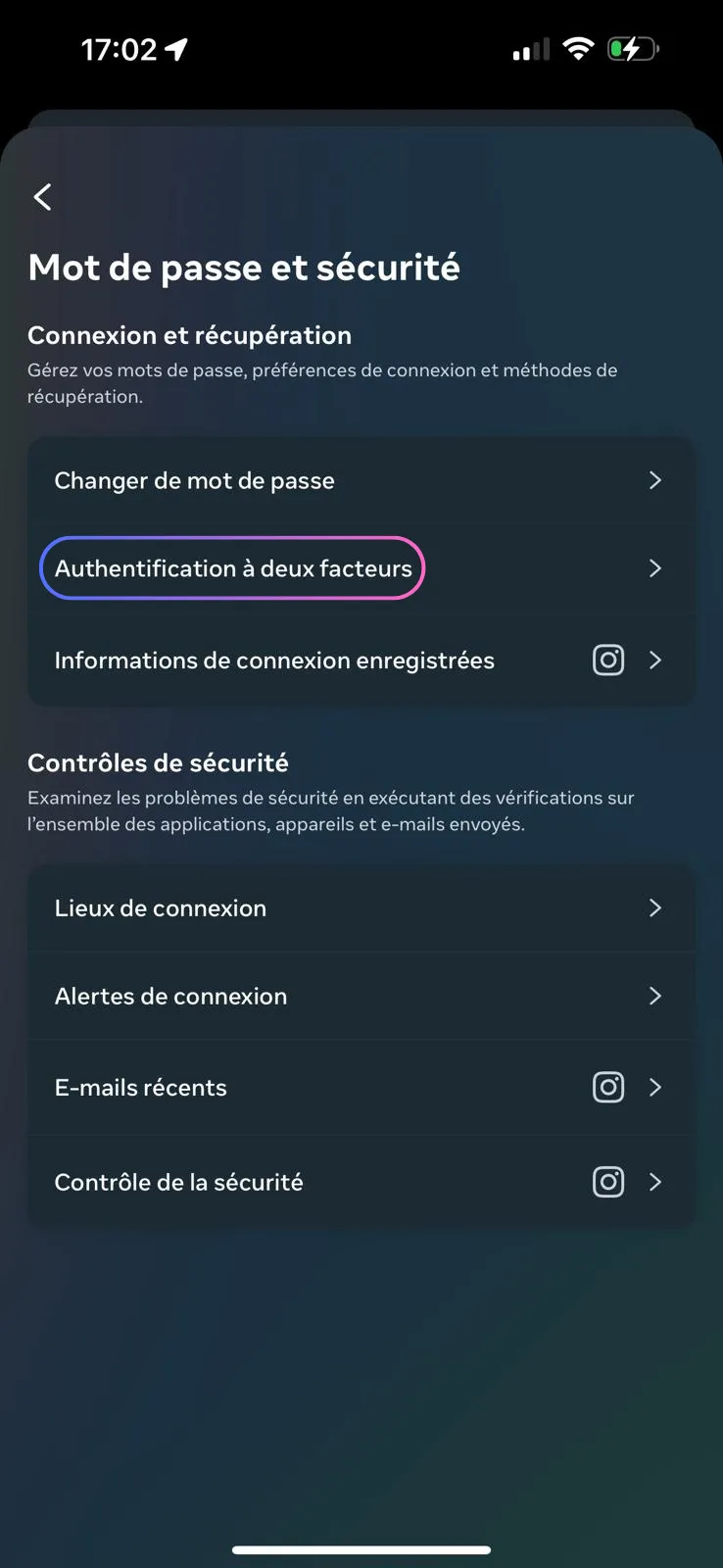
In the "Login & Recovery" section, click on "Two-Factor Authentication".
Step 5 : Select Your Instagram Account
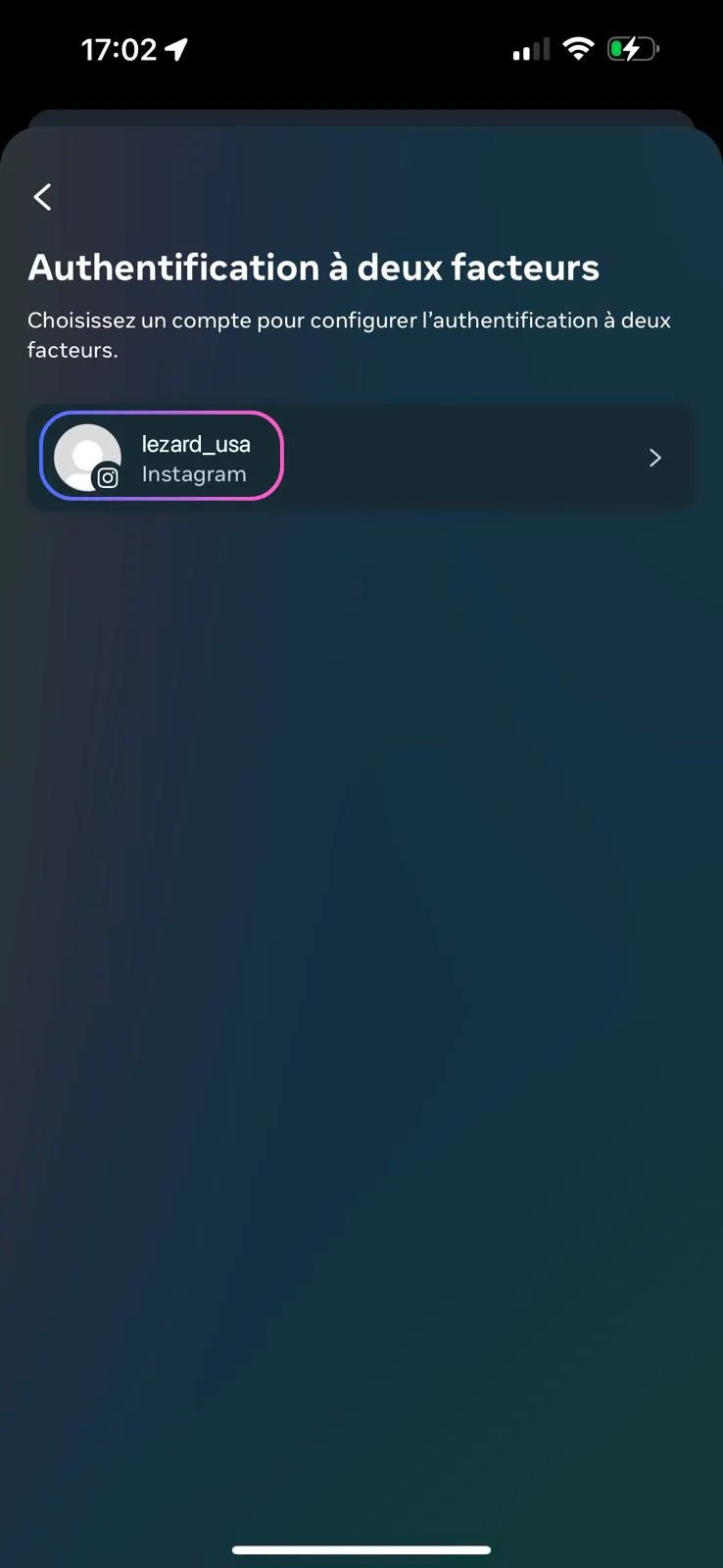
If you have multiple linked Instagram accounts, click on the one you want to automate to enable two-factor authentication.
Step 6 : Optional E-mail or SMS Verification
Optional step: Instagram may ask you to enter a code sent by e-mail or SMS to confirm your identity. Enter the code you receive if prompted, otherwise skip directly to the next step.
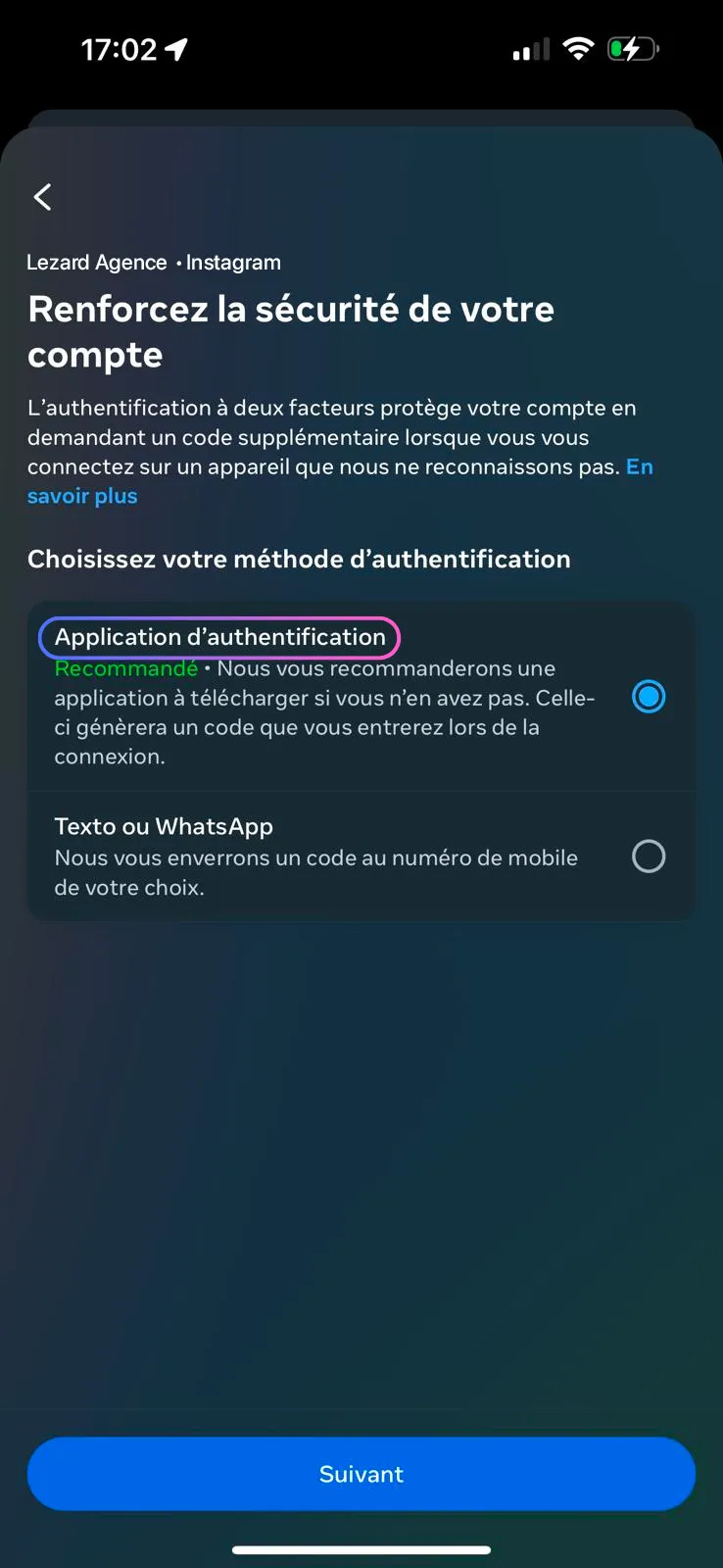
Step 7 : Choose Authentication App
Select "Authentication App" as the verification method.
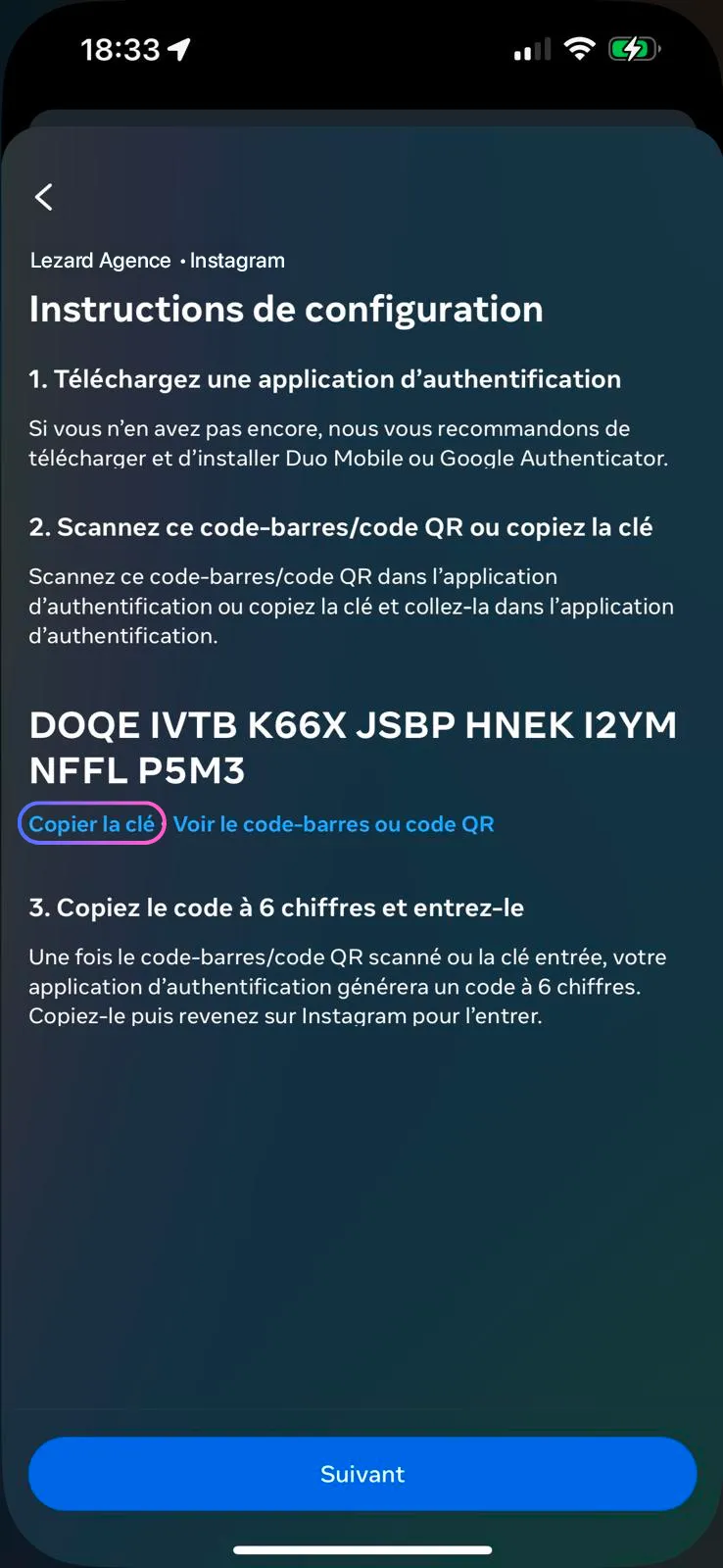
Step 8 : Copy the Authentication Key
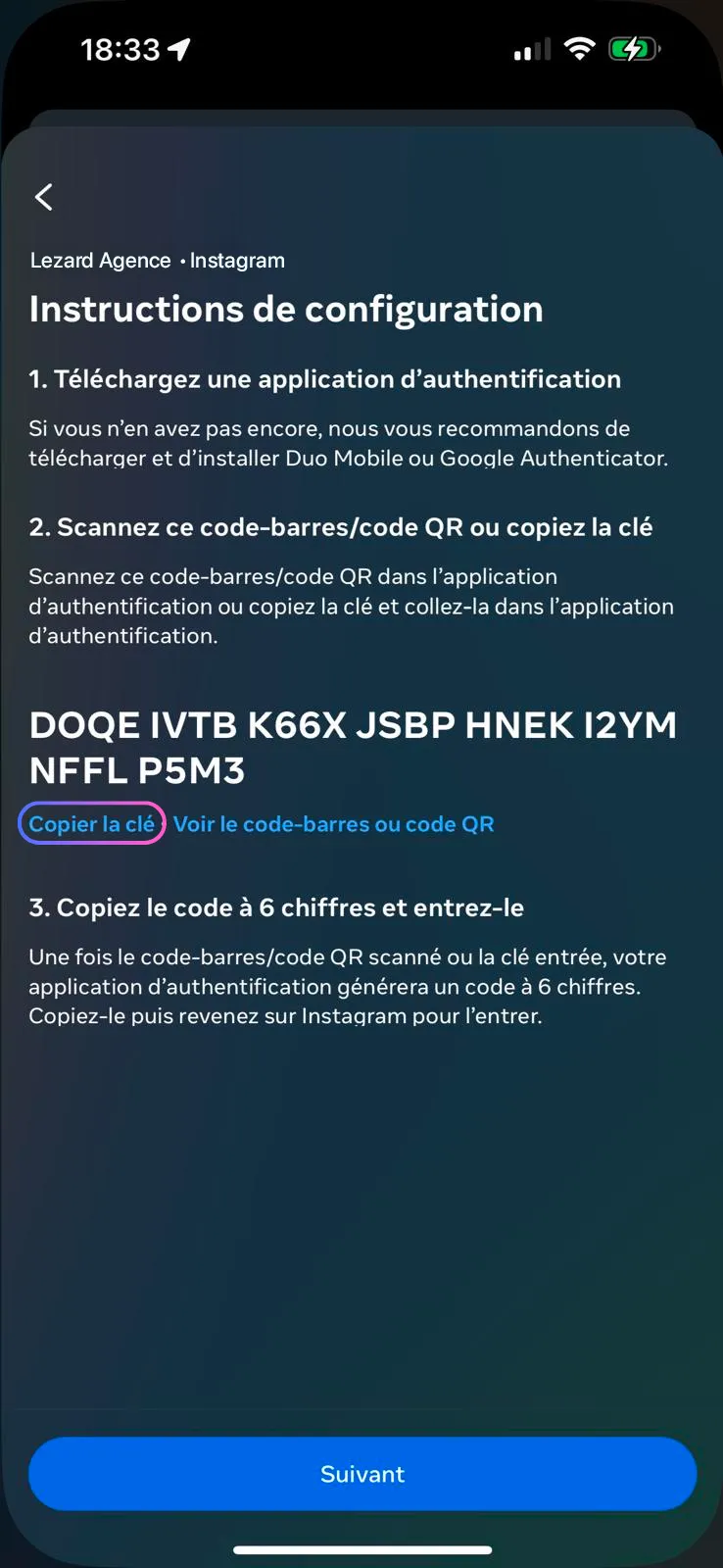
Instagram will display a secret key. Copy this key - you'll need it to configure Google Authenticator.
Step 10 : Add a New Key
Open the Google Authenticator app and click the "+" or "Add Account" button to add a new authentication key.
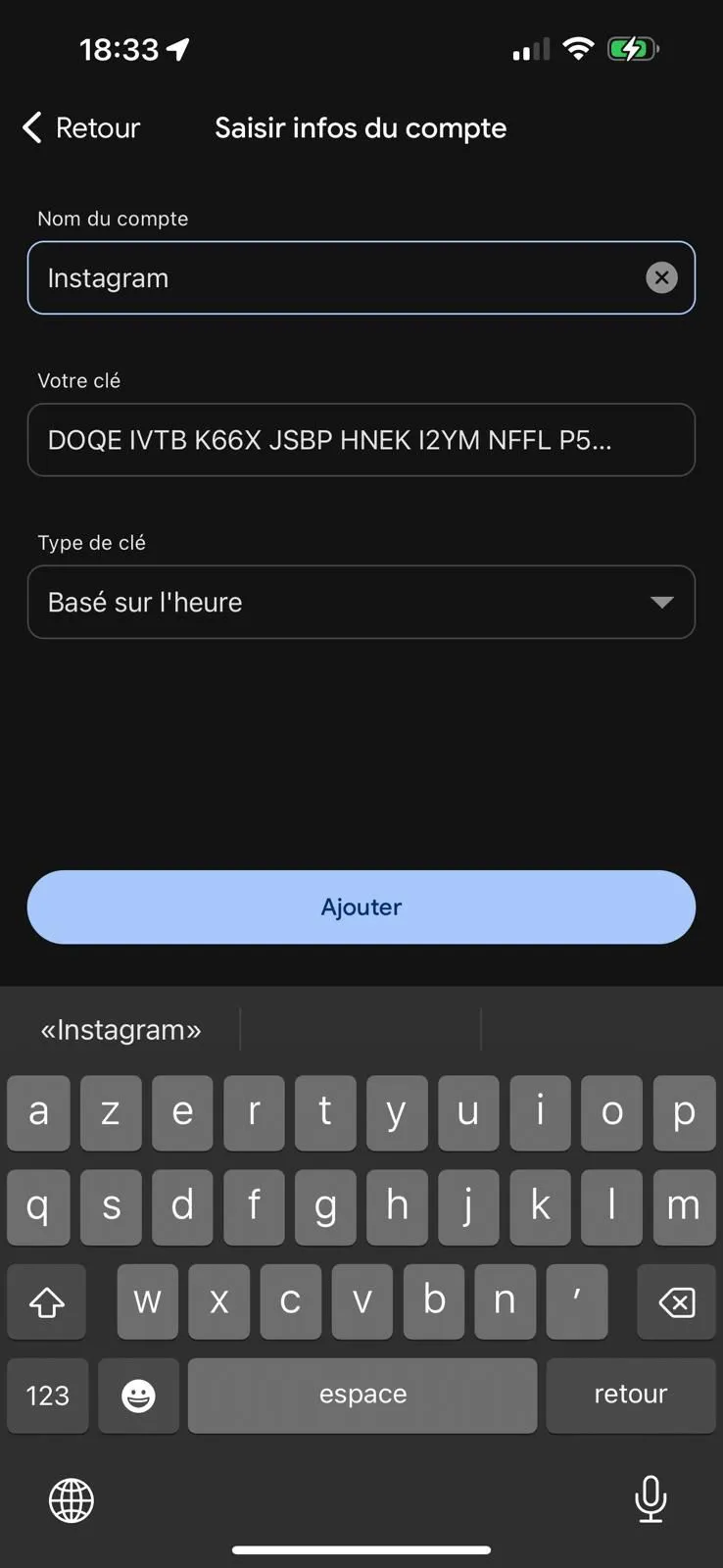
Step 11 : Enter Your Information
Fill in the two required fields:
- First field: Your Instagram username
- Second field: The key you copied in step 8
Validate to generate the authentication code.
Step 12 : Confirm the Code on Instagram
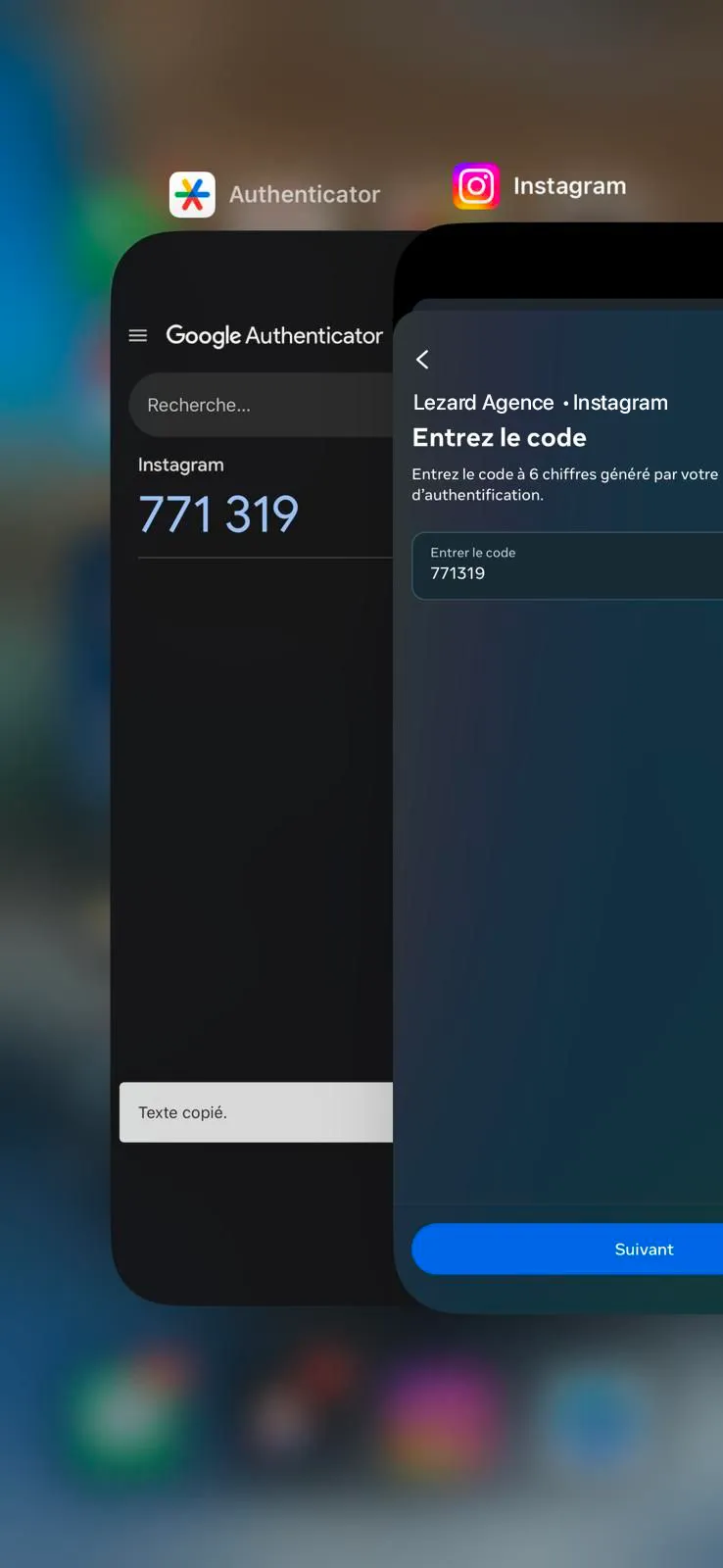
Return to Instagram and enter the 6-digit code generated by Google Authenticator to finalize the activation.
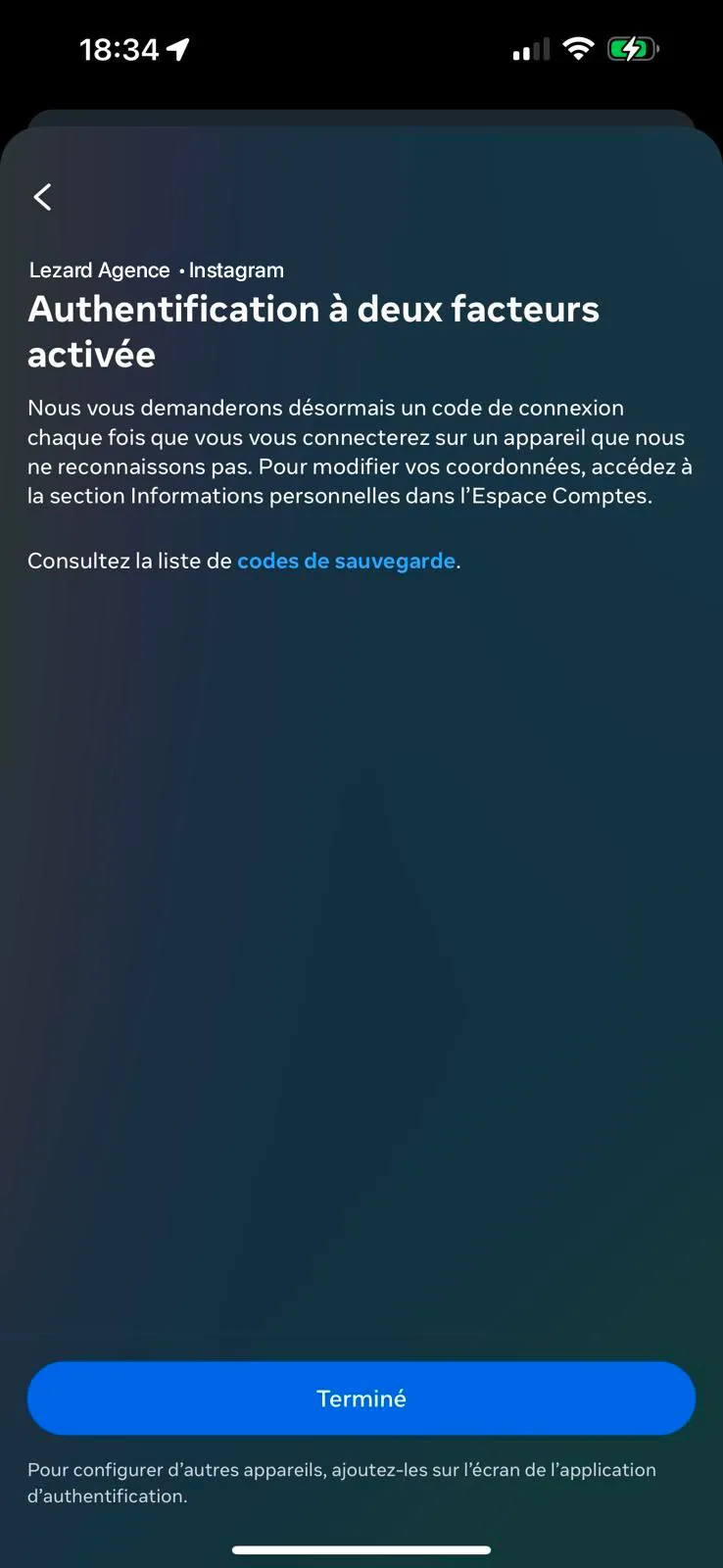
⏱️ Warning: The code changes every 30 seconds, make sure to enter it quickly.
Step 13 : Authentication Activated!
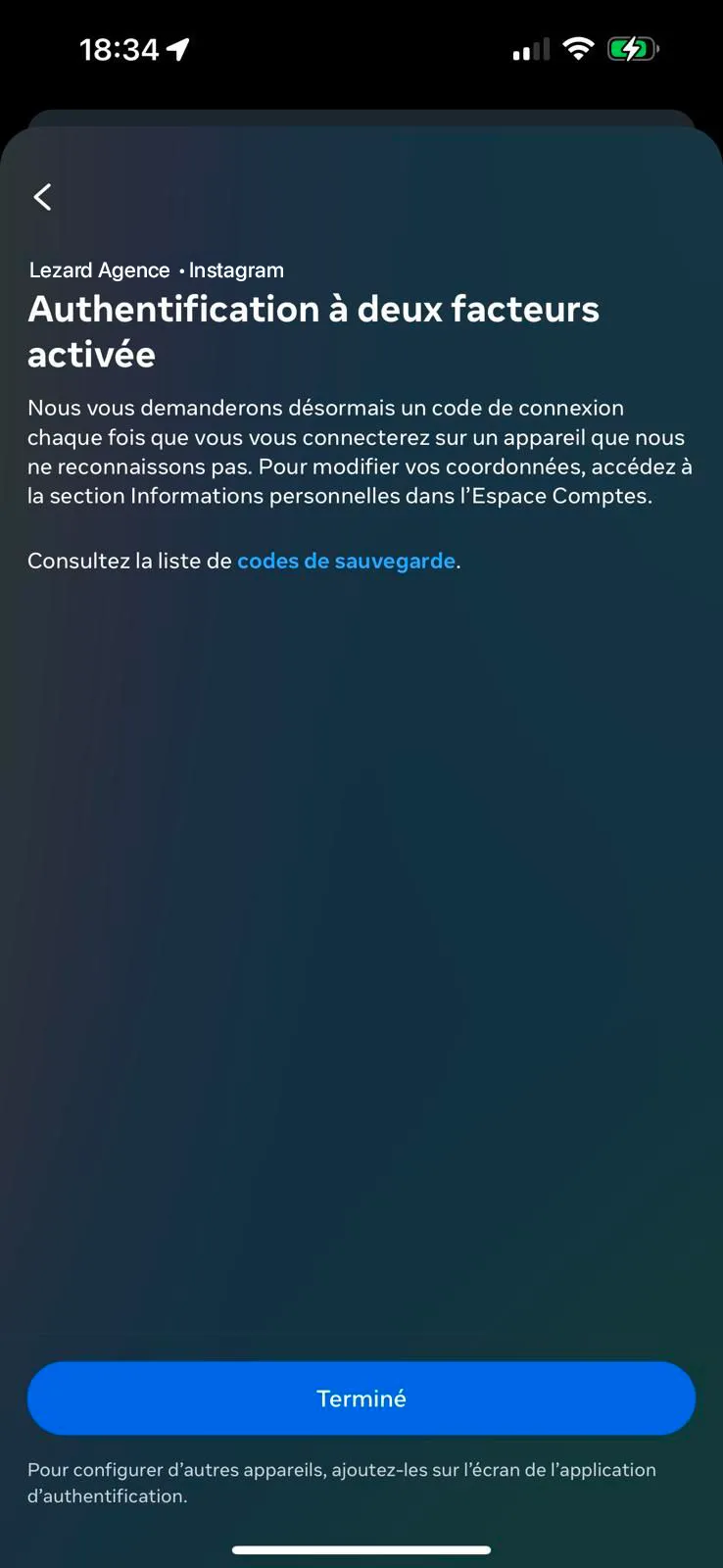
Perfect! Your two-factor authentication is now activated and secured via Google Authenticator.
Need help?
If you encounter difficulties during the activation of two-factor authentication, our Lezard Agency team is available to assist you:
📧 admin@lezard-agency.com
Summary of Steps
Estimated time: 5 minutes